

In this guide
The Operations module organizes the work that gets your properties ready and keeps them running: cleaning, maintenance, inspections and restocking. It answers four questions: what needs doing, at which property, who's doing it and by when it has to be ready.
By the end of this guide, you'll know how to create, assign and complete a task, and how to let recurring tasks create themselves. Want the why before the how? Read Between check-out and the next check-in.
The four parts
| Tasks | Something someone needs to do. Example: cleaning the property after check-out. |
|---|---|
| Routines | A task template that repeats. When the date comes, the routine creates the task. Example: cleaning the AC filter every 2 weeks. |
| Automation | A rule that creates tasks on its own. Example: creating the cleaning when a booking is confirmed. |
| Indicators | Your operation's numbers: cancellations, no-shows and penalties, by period, property and channel. |
Step 1 · Create your first task
- Open the task list under Operations and create a new task.
- Write what needs doing, such as “Post-checkout cleaning”, and choose the type.
- Choose the property and, if there is one, link the booking.
- Set the assignee.
- Enter when the work starts and when it has to be finished.
- Add useful instructions, such as “clean the fan” or “take the bed linen to the laundry”.
- Save. The task shows up in the task list, and in the schedule when it falls within the period shown.
Step 2 · An example: the property ready for the next guest
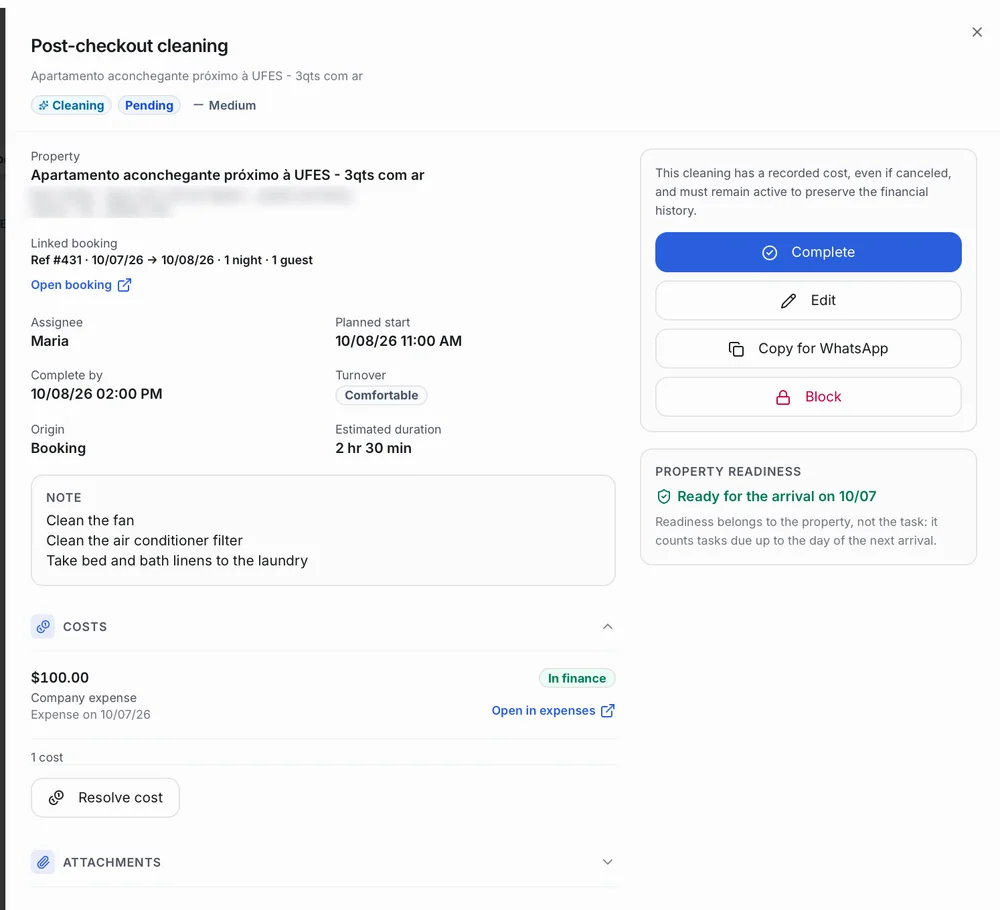
The guest leaves at 11 a.m. and the next one arrives at 2 p.m. The cleaning has to be done before 2 p.m. On the task, the Turnover field sums up the time until the next arrival: “Same day” means the next check-in is on the check-out day; a tight window means the deadline is short; “Comfortable” means there's more time to finish the job.
The Property readiness panel tells you whether the property is ready for the next arrival. Readiness belongs to the property, not the task: it counts all of the property's tasks due up to the day of that arrival.
Step 3 · Follow the day
- Start with today: the home page shows the day's check-ins, check-outs and tasks, and what needs attention.
- Filter the list: in the task list, filter by period, property and type, or use the shortcuts for overdue, tight today, unassigned and unscheduled tasks.
- Assign: unassigned tasks have an Assign button.
- Block it when something's in the way: if the task can't go ahead (a part is missing, the property is occupied), use Block and record the reason. It then shows up among the blocked tasks.
Step 4 · Send it to the team
If your team doesn't use Operent, you pass the schedule on in two ways:
- One task: open the task and click Copy for WhatsApp. A message with the property, address, times, next check-in, duration and instructions is copied to your clipboard. Paste it into the chat with your cleaner.
- The whole schedule: in the task list, open the ⋯ menu next to the type filter and export the schedule. The spreadsheet lists property, address, task, assignee, date and time for the filtered period.
Step 5 · Complete it and record the cost
- Complete: when the team tells you they're done, open the task and click Complete. Completing is always done by hand. Under Attachments, keep a photo or a receipt if you want.
- Cost: completing the task doesn't record its cost. In the task detail, under Costs, use Resolve cost and check the amount, account, date (today's is suggested) and who pays. A company expense or a deduction from the payout creates an entry in the financials: the first as the company's expense, the second coming out of the owner's amount. If the owner paid directly, it's recorded for information and handled on its own. The entry stays linked to the property and the task, and Open in expenses takes you straight to it.
- History: every task keeps what changed, by whom and when.
Step 6 · Let routines handle what repeats
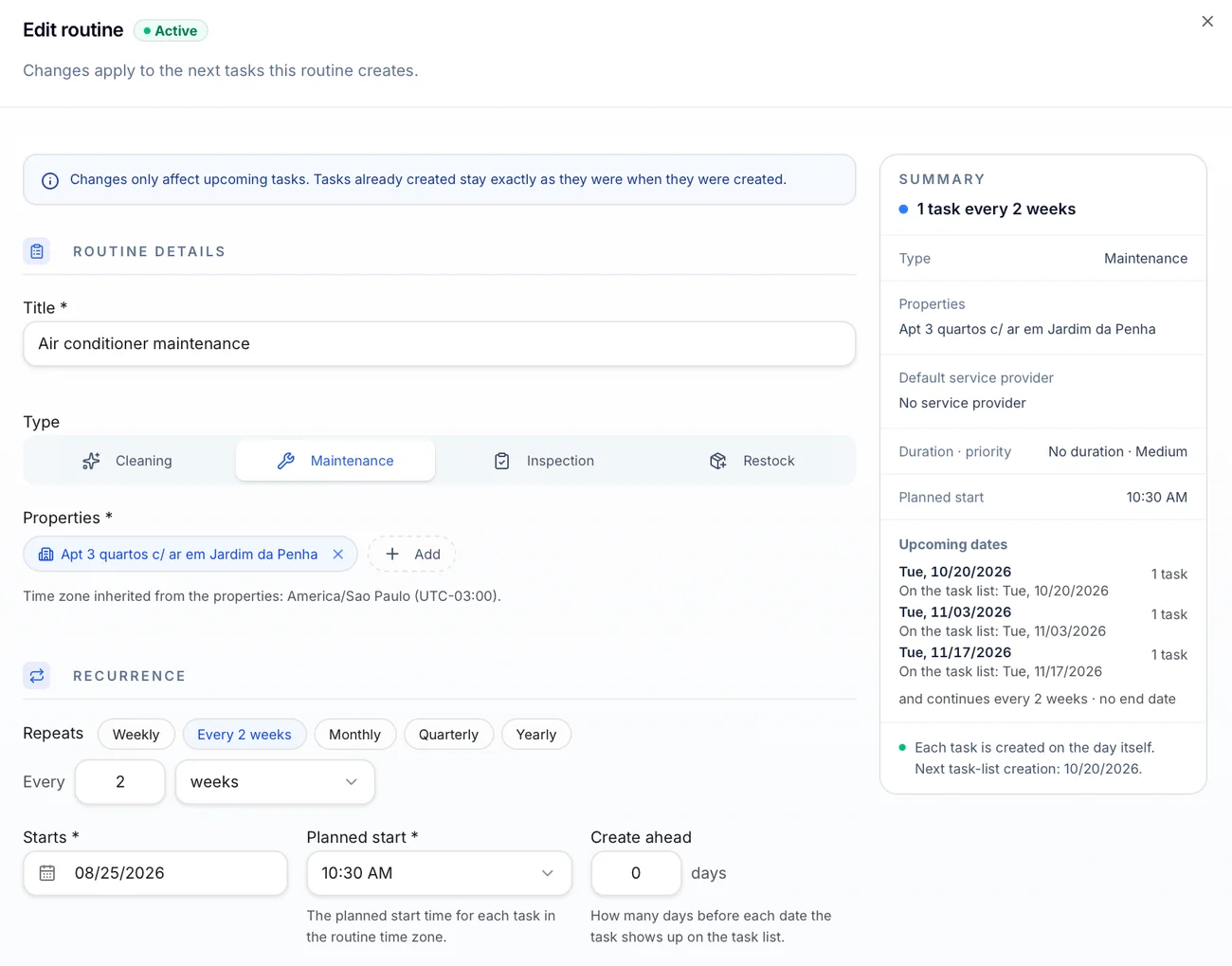
Use a routine when a job repeats on the calendar: a monthly inspection, a regular cleaning, preventive maintenance. Under Operations, open routines and create a new one.
The routine creates one task per selected property on each date. Three properties on a monthly routine means three tasks a month, and each one is followed up in the list like any other task.
| Title and type | How the task will appear, and whether it's cleaning, maintenance, inspection or restocking. |
|---|---|
| Properties | One or several. The time zone comes from the properties. |
| Repeats | Weekly, every 2 weeks, monthly, quarterly or yearly. Under “Every”, you adjust the interval: every 2 weeks, every 3 months. |
| Starts and Planned start | The date of the first task and the time of each one. |
| Create ahead | How many days before each date the task shows up on the task list. With 0, on the day itself. |
| Ends | No end date, or a final date. |
| Default service provider | Who's already assigned to each task created. The estimated duration and priority are set here too. |
An example: “AC cleaning” at two properties, every 3 months, created 7 days ahead, with a planned start at 9 a.m. A week before each date, Operent creates one task for each property.
The Summary shows the upcoming dates before you save. After that:
- Edit: changes apply to the next tasks; the ones already created keep their data.
- Deactivate: the routine stops creating tasks. When you turn it back on, it picks up from the next date, without creating tasks for dates that have passed.
- Delete: once a routine has created tasks, it can't be deleted. To stop it, deactivate it.
For a one-off job that doesn't repeat, create a standalone task (step 1).
Step 7 · Turn on automatic cleaning
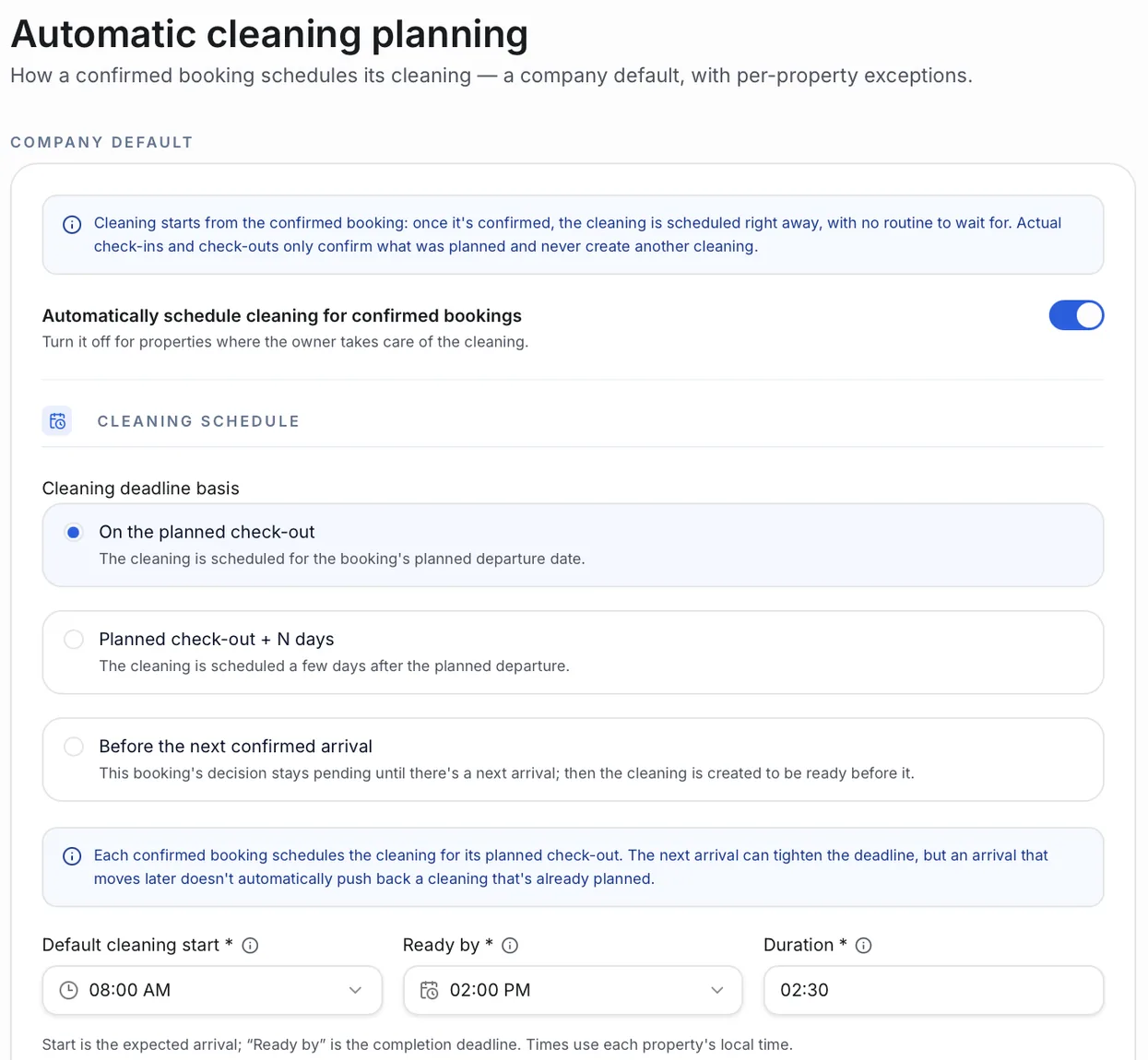
In Automatic cleaning planning, turn on “Automatically schedule cleaning for confirmed bookings”. From then on, every confirmed booking has its cleaning scheduled following the rule you chose. With “Before the next confirmed arrival”, the task is only created once there's a next booking. The rule applies to bookings confirmed after you save; those already confirmed aren't updated. Actual check-ins and check-outs only confirm what was planned and never create another cleaning. And if the booking is canceled before check-out, its cleaning is canceled automatically and kept in the history, as long as no cost has been recorded yet (see the common questions).
| On the planned check-out | The cleaning is set for the departure day. The most common choice, for high-turnover properties. |
|---|---|
| Planned check-out + N days | A few days after the departure. For when the team comes on fixed days. |
| Before the next confirmed arrival | The cleaning is only created once there's a next guest, so it's ready before them. No cleaning a property that's going to sit empty. |
Also set the Default cleaning start, Ready by, Duration, Default service provider, Priority and the cleaning instructions, which are copied into every new task. Save the default: it applies to bookings confirmed from then on.
Below the default, edit the properties that don't follow it: use the company default, customize a rule just for that property, or schedule no automatic cleaning when the owner takes care of it.
Common questions
Are a task and a booking the same thing?
No. The booking organizes the stay; the task organizes the work. A booking can create a task, such as the cleaning.
The property shows as “not ready”.
There are pending tasks due before the next arrival. Open the task, check what's missing and complete it once it's done.
The task shows as unscheduled.
It's missing a date and time. Open the task, click Edit and enter when the work starts and when it has to be finished.
I canceled a task that had a recorded cost.
The cost stays in the financial history. That's why a task with a cost may need to stay active.
I confirmed the booking and the cleaning didn't show up.
Check that automatic cleaning is on and that the property isn't set to schedule no automatic cleaning. If the deadline option is “Before the next confirmed arrival”, the cleaning only appears once there's a next booking. Bookings confirmed before you turned automation on keep the decision they had: create the cleaning as a manual task linked to the booking.
What happens to the cleaning when a booking is canceled?
If the booking is canceled before check-out, Operent cancels the cleaning task created for it, as long as no cost has been recorded yet. The task isn't deleted: it stays in the history. If a cost is already linked, the task and the cost are kept for review. Completed tasks stay too.
The booking changed dates. What about the cleaning?
If the booking's own dates change, its cleaning is rescheduled automatically, following the property's rule. The next arrival works differently: an earlier one can tighten the deadline; a later one doesn't automatically push back a cleaning that's already planned.
I changed the routine and the tasks already created didn't change.
That's expected: changes apply only to the next tasks. Adjust the existing ones by opening each one and clicking Edit.
in Operent
Ready to do it in Operent?
Open Operent and follow the steps with your own properties. If you get stuck, talk to us.